I use Google Keep to keep track of thoughts, tasks and to-do lists, and reminders. If, like me, your Google Keep is becoming hard to manage then I have some ideas that you might like to try to keep more organised and efficient.
To give this some context, let me explain that I have adapted some methods from the Getting Things Done (GTD) productivity system to suit my needs. In GTD there is a concept of Projects and Next Actions. A Project is the thing you want to achieve (like “organise Emma’s birthday party”) and the “Next Action”, or “NA”, is the very next thing that can be done towards the project. There may be lots of things to be done on the project, like “send out invitations”, but the only thing that should be on your to-do list is the very next thing you need to do, such as “Call the play centre to check availability of dates”.
So, generally there are two types of projects, big projects and small projects. If you keep all these projects in Google Keep, you will find that you have a mass of Notes which are hard to organise and go through even if you’re using colours and labels. We need to keep Keep clean. So, here is my suggestion…
If a project has only a few steps then use a List with check-boxes and keep everything for that project in that list. Use colours and labels to organise as you would normally, but keep everything about that project in one Keep note.
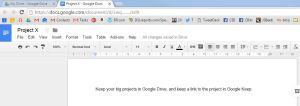 Keeping a big or complicated project in Google Keep makes it hard to manage, especially if there is more than one thing that you could describe as a Next Action like “Call the play centre to check availability of dates” and “draw up a list of attendees”. Use a Google Docs (word processing) document in Google Drive to organise your project with notes and lists of things to do (use bullet-points). When you know what your Next Actions are, put each Next Action in its own Note in Google Keep and refer to the main project, such as “Draw up a list of attendees – see Google Drive ‘Birthday’ project”. And here’s the best bit…
You can add a link in the Google Keep note which will take you to the Google Drive Project. When you open the Google Keep note, you can click the link within it and it will open up the related project document in Google Drive, allowing you to note down your progress, review the project, or set a new Next Action. This link works on computers, tablets and phones; wherever you’re signed in to your Google Account.
 To insert the link, go to the Google Drive document, highlight the entire URL link (the website address) and select Copy. Then open up the Google Keep note, and Paste the link into it.
It sounds more complicated than it is in practice. Once you’ve done it a few times it will seem easy. Your Google Keep will be less cluttered and you will be more efficient.
If you need any help with Google services, with computers and IT generally, or even entire organisational systems, please contact me using “Contact” at the top-right of this page or phone me on the numbers just below “Contact”.

 this PC, and transfer all the data and software over to the new super-fast solid state hard disk. It will look exactly the same to the client, but boot around three times faster and be much faster generally, and have more storage space
 Today is the 26th Anniversary of me becoming self employed. on 15th January 1990 I stopped working at a bank and became a self employed financial adviser. I had previously worked in pubs and clubs, and for the local education authority in the “computer lab” at the school where I was still a student. I kept up to date on computers and other IT and continued to support family, friends and colleagues.
 Around ten years ago I started Colin Bowen IT Services, mainly as a way to fix more computers than I had access to at the time, and to generate a little extra income in my spare time (I didn’t have kids then, so I had spare time). I never intended it to become my main business, but over the years the IT services business has grown quite steadily, and I’m now at a point where I don’t have time to spend on both businesses and spend time with my family.
 If you can’t bear the thought of missing any of my extremely interesting posts, then you can easily subscribe to email updates. Just click on the Follow button at the bottom right of any page and input your email address. One confirmation email later, and you’ll get an email every time I post the this website.
 A new client called asking for advice on improving their computer setup at home. Their webcam microphone was faulty, their monitor was a little small for their impaired eyesight, and their home phones weren’t loud enough for their impaired hearing.
 Happy New Year!
 I wrote in January 2015
 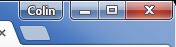 Look for the new user tab at the top right of Chrome, right-click it, and then select the account you want to open. This should open a new instance of Chrome signed in with the other user.
 CBits Tech Support