Today in Computer Repair

Here’s a run-down of some of the things I’ve been doing today.

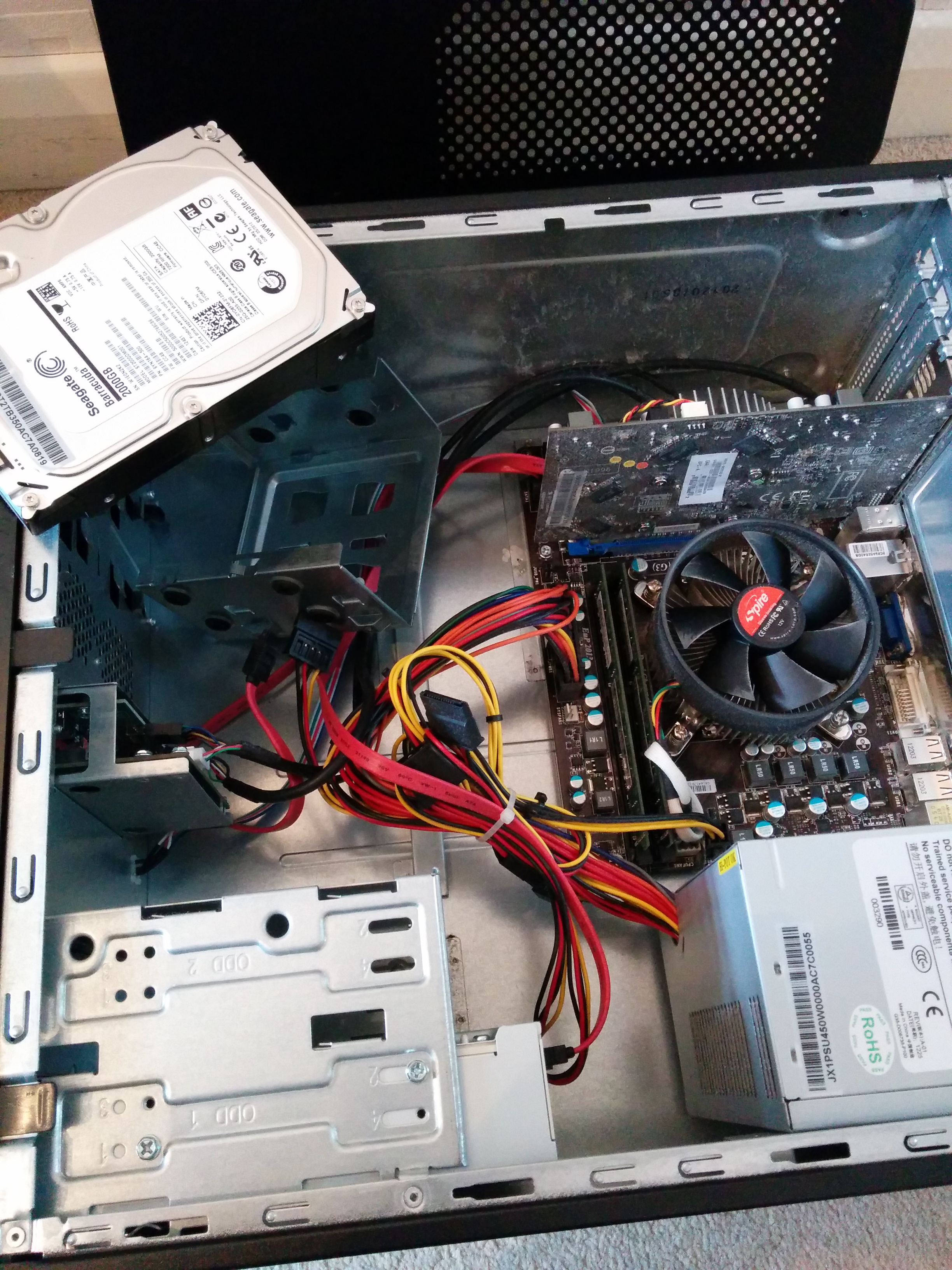
2015-06-10 11.27.09I’ve had some old computers laying around for a long time, and since things aren’t too busy this week I was going to take them to the tip. Instead I refurbished them and I’m offering them for sale. Two desktops and one laptop have been cleaned them out, data securely wiped, hard disks tested for servicability, one got a RAM (memory) upgrade. I installed Xubuntu on all three. Xubuntu is an Operating System (like Windows) which works very well on older computers. I tested the startup time on one of them, and I can turn it on, boot it up, and get online to Facebook in one minute 15 seconds. I might keep the laptop to use for the family in the dining room, but the two desktops are being offered for sale. Contact me if you’re interested.

One other computer is a Windows Vista computer, but it has no hard disk. I’ve ordered a new hard disk and I’ll install Windows Vista on it again. I’ve already found a buyer for this one.

2015-06-10 11.37.02The other laptop I worked on today is has a failing hard disk. For weeks the client has been seeing the following message SMART Hard Disk Error. The SMART hard disk check has detected an imminent failure. To ensure not data loss, please backup the content immediately and run the Hard Disk Test in System Diagnostics. Hard Disk 1 (301). F2 System Diagnostics. ENTER – Continue Startup. For more information, please visit:… That’s not a typo, it actually says “Not data loss” instead of “no data loss”. Basilcally, the har ddisk is failing and there is a real danger that the client’s files and photos will be lost. I have backed up the data from this failing hard drive and I’m ready to fit the replacement hard drive, install the operating system, and restore all the client’s data and photos.

Finally, I’ve been trying for a week to get a desktop PC to boot into Windows again but it just won’t. Because it was Windows 7 and had an upgrade to Windows 8 (8.1 now), it doesn’t contain some of the files required to do a “PC Refresh”. I have agreed with the client that I will have to reinstall Windows, and he would prefer to go back to Windows 7. On my advice, he has agreed for me to purchase a new disk drive and install Windows 7 on that, leaving his original disk drive untouched in case the data backup I did didn’t get all of his files and photos. It’s a £50 insurance policy against losing some precious family photos.

I lot of work for a quiet day!

To see other “Recent Jobs”, click here and scroll down.

Get Windows 10 – register for a free upgrade. What’s it about, and what to do?

Get Windows 10 Free UpgradeTL;DR* No need to take action yet, Windows 10 comes out 29th July and the free upgrade is valid for a year.

Most of us Windows 7 and Windows 8 users are getting “get Windows 10” pop-ups inviting us to register for a free upgrade to Windows 10. If you don’t have a pop-up yet, don’t worry, you will be eligible for an upgrade at some point.

Windows 7 and Windows 8 users will have the chance to upgrade to Windows 10 for free when it comes out on 29th July. Microsoft is trying to get people to register for the free upgrade before it’s released; it’s just a marketing ploy. Whether or not you want to upgrade is up to you, it depends on whether you want the new features of Windows 10.

If you do decide to upgrade, there are two options; and “in-place upgrade” which (supposedly) leaves your files and software on the computer, or a “fresh install” where you backup your data (documents, photos, etc), wipe the hard disk, do a fresh install of Windows 10, install your software again, restore your data. For previous upgrades to Windows it was recommended that you do a “fresh install” to minimize the risk of things not working properly afterwards, and I expect that will be the best option for most people for Windows 10 too. In any case, I would recommend a backup of your data first. Also remember that some older software and hardware such as printers may not work with Windows 10.

So, what should you do now? I suggest you do nothing at the moment, but registering for the upgrade doesn’t commit you to the upgrade (I think). The free upgrade will be available for a year anyway. I would recommend waiting until Windows 10 has been installed by many more people and most of the bugs have been fixed. Then, if you want to upgrade, do so when you’re not likely to need the computer for a week in case there are problems.

When you do decide to upgrade, make sure you take your time, and maybe call in a professional to make sure it goes smoothly.

* TL;DR stands for Too Long, Didn’t Read. The tl;dr label is sometimes used constructively by an author to introduce a short summation of a longer piece, as I have here.

Important announcement about dangerous HP laptop power adapters

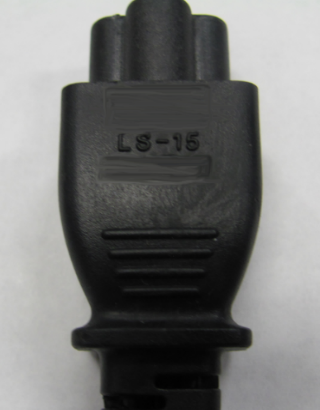
HP Power adapter recallIf you have an HP laptop sold from Sept 2010 through June 2012 (check anyway if later than this) then the power cord could be dangerous. Disconnect from the mains and check for LS-15 on the mains lead where it connects to the power brick. If is says LS-15 you are affected and should not use the power adapter.

Check here for information about a worldwide recall of affected power supplies http://support.hp.com/us-en/product/HP-Pavilion-dv6-Entertainment-Notebook-PC-series/4011364/model/4036197/document/c04404446/

CBits takes no responsibility for this information, errors, or omissions. This is for information only. You should check with the manufacturer directly.

Troublesome PC number #2 – hard disk removed for backup

2015-06-08 15.24.36Things have been too busy lately for me to post on my website. Things are a little slower this week. I’m tackling two troublesome computers left over from last week, a laptop and this PC which are fighting not to be fixed. The laptop has a SMART error which basically means the hard disk is at the point of failure and needs to be replaced. I did most of the work only to find out that Microsoft won’t authenticate the version of Windows that came with the computer. I spent over 30 minutes on the phone to Microsoft in India over a terrible phone line but no luck. So I’m trying a couple of other fixes that aren’t as idea but will get the client’s laptop back in working order.

This PC is a Windows 8 PC that just won’t boot up. Nothing wrong with the hard disk, it just won’t boot up. All four restore points fail, two of which are Windows Updates and two are (supposed) computer tune-up and troubleshooting software installs. I suspect this latest “tune-up” utility broke Windows. As usual, the client has precious family photos on the hard disk and has no backup, so the only thing to do is remove the hard disk and backup the data for him (should take all night), then try repairing Windows again. It’s always best to backup first in case something goes badly wrong. That’s not something a certain major retailer will do, they’ll just reformat and reinstall, losing all the software, photos and other data. Anyway, wish me luck!

If you need any help or advice with your computer, tablet (inc iPad) or phone (inc iPhone), then please let me know.

What to do when you get visual and audio alerts that you computer is infected

I have heard of several people in the last couple of weeks whose computer has shown fake warnings of viruses or system problems, often with audio warnings. The computer is locked and you can’t close the windows or get rid of the warnings. The warnings say you must phone a number to repair the computer. DO NOT PHONE THAT COMPANY, they are scam tech support companies. See here for examples https://blog.malwarebytes.org/fraud-scam/2014/11/psa-tech-support-scams-pop-ups-on-the-rise/

Some of these warnings take the form of pornographic images in order to shock and scare the user into calling the fake tech support company and pay for their “services”. See here for more info. https://blog.malwarebytes.org/fraud-scam/2015/05/tech-support-scammers-go-for-pornographic-shocker

Don’t fall for these scams, they’re expensive with the scammers and expensive to sort out afterwards. Instead, go to a trusted tech support company (like me) for professional help.

Here’s what you should do if the computer is locked by fake warnings, maybe with loud audio alerts:

  1. Put your finger on the power button and hold it down until the computer shuts itself off
  2. Restart the computer and run a full virus scan and malware scan (contact me for my recommended security software)
  3. If the results of the scans show infections, or you can’t complete the two steps above, or you feel that you want the computer looked at professionally, contact me.
  4. Be aware that a website you visited recently or software you installed or files you opened recently may be the cause of the problem.

Contact me for help and advice, virus and malware removal, or for my recommendations and tuition to keep safe online.

Uninstall Flash to protect yourself

That’s it, I’m done with Flash. I don’t have it on my desktop PC and because I use Chrome browser I haven’t had any problems. I just uninstalled it from the one remaining laptop. I recommend that you do the same.

While you’re at it, buy Malwarebytes Antimalware from my to help protect against this stuff, £17.95pa for three computers.

https://blog.malwarebytes.org/malvertising-2/2015/04/booby-trapped-hugo-boss-advert-spreads-cryptowall-ransomware/?utm_source=Gplus&utm_medium=social

You need a (local) backup of important photos and files before you get an encryption virus

Encrytion viruses such as Cryptolocker, Cryptowall and Teslacrypt silently encrypt your files (photos, documents, everything) so you can’t open them without paying around £400 to the bad guys for the decryption password. Antivirus might not protect you. The new viruses also encrypt online storage and backup, so having an online backup or online storage might not help you. What you need is a memory stick or an external hard disk that you can connect whenever you want to do a backup and disconnect when the back is done.

Please, if you value those photos and files, make sure you have a proper backup that you control (ie more than one copy, not online). If you want me to help you set it up, including recommending any memory stick or hard disk you need, then please get in touch.

New credit card terminal tested and working

2015-02-24 11.59.56I can now accept credit cards, debit cards, and PayPal on-site using my new credit card terminal and text or email receipts. I can still accept credit cards, debit cards, and Paypal payments via my remote support software too.

Replace Norton and Avast with my recommended security suite, and new Android phone setup

Quite an easy job this one, uninstalled Norton and Avast, both of which are sometimes hard to uninstall requiring additional tools. Avast caused a problem this time, getting stuck deleting a file, but  I solved that. I then installed my recommended suite of security software which is less than £20 per year compared to the £60+ Norton subscription. I also removed MyPCBackup which had been installed without the client’s informed consent.

This client had bought quite a nice phone from a shopping channel several months ago but not turned it on. I turned it on, set it up (email, Facebook, etc) and gave her some tuition on how to best use it.

Pay by credit card, debit card, PayPal, bank transfer, cheque or cash

No need to wait until pay day!

I am now able to accept credit cards, debit cards and PayPal payments. I can also accept bank transfers (in advance), and cash and cheques for face-to-face support.

Call now for fast, convenient tech support, or download the remote support app for Windows and Mac and install/run it, then click “Start Session” for immediate support if I’m online. If I’m not online, you can leave me a message to connect  or contact you.