Just a random selection of recent jobs I’ve completed for customers.
- New HP Laptop and printer set-up
- Windows not booting after using system restore to attempt a fix, and printer problems – fixed. Set up email on Android phone, and set mobile broadband data use warning and limit
- Same-day-service for business customer to fix “no internet” problem. Also installed and set up Dropbox, and set up and run their first backup
- Windows Login problem solved, Windows Updates completed, Antivirus installation
- Non-starting Windows PC problem solved, advice on Windows Updates, and advice and tuition on Kindle Fire Tablet
- Failing hard disk on a laptop. Backed up data, replaced hard disk with SSD (Solid State Disk), installed Windows 10, restored data
- Windows XP won’t shutdown. I know, Windows XP! Retro! Also, fixed line, wired phone sometimes can’t dial out.
- New printer installed and set up so customer can print from PC, iPad, iPod and Android phones. General PC tune-up highlighted Windows Updates were failing (now fixed), and a security checkup (Norton auto renewal).
- Lenovo Ideapad set-up, Norton installation and activation, Gmail account creation.
- iPad locked during update and couldn’t access iTunes server on Windows Vista, solved by using another computer and resetting the iPad and installing updates.
- Computer infected with viruses and malware due to Norton not working – disinfected and fixed Norton, updated Windows, tested emails. Installed ad blocker on another PC. Advice on tablets and phones.
If there’s anything I can help you with please contact me on the numbers top-right of this page or by using the Contact form by clicking here.
Thanks for reading.


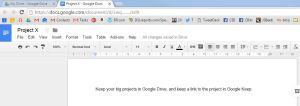 Keeping a big or complicated project in Google Keep makes it hard to manage, especially if there is more than one thing that you could describe as a Next Action like “Call the play centre to check availability of dates” and “draw up a list of attendees”. Use a Google Docs (word processing) document in
  To insert the link, go to the Google Drive document, highlight the entire URL link (the website address) and select Copy. Then open up the Google Keep note, and Paste the link into it.
 I wrote in January 2015
 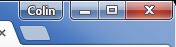 Look for the new user tab at the top right of Chrome, right-click it, and then select the account you want to open. This should open a new instance of Chrome signed in with the other user.
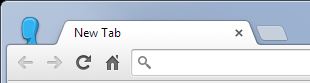
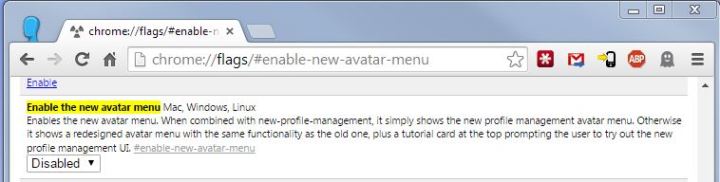 In the top drop-down box, select Disabled. Then close that tab. Next time you open Chrome, the new User tab will be gone and your your old icon will be back. If you have any problems, please get in touch and we’ll arrange a remote support session for me to do it for you. Please Like, Share, etc
 CBits Tech Support